Frequently asked questions
What is this big switch off that’s started?
It means the current old analogue landline provider Openreach/BT is now switching off this service due to moving to digital and therefore the old system will no longer be in service. By 2027 everyone will need to have moved to a new digital line service. For more in-depth details please click below –
What is the process from ordering to receiving my HD handset or ATA adapter?
Just take a look at our tariff or packages and choose one that’s suits you best, follow the onscreen easy signup process, then depending on your phone choice you will be taken to either the HD handset products page to choose your new HD phone starter bundle, additional handsets or to our analogue adapter page if keep your old phone was chosen.
Pick your suitable HD handset/s or analogue phone adapter from our range, view your basket or go straight to the checkout, fill in your payment details and click pay to purchase your chosen tariff, package and handsets or adapter, a confirmation email will be sent to your email address and further emails during the processing to let you know up to and when your new HD handset/adapter has shipped to your address.
How do I connect up my new HD handset or ATA adapter?


Unpack your new HD handset or analogue adapter…
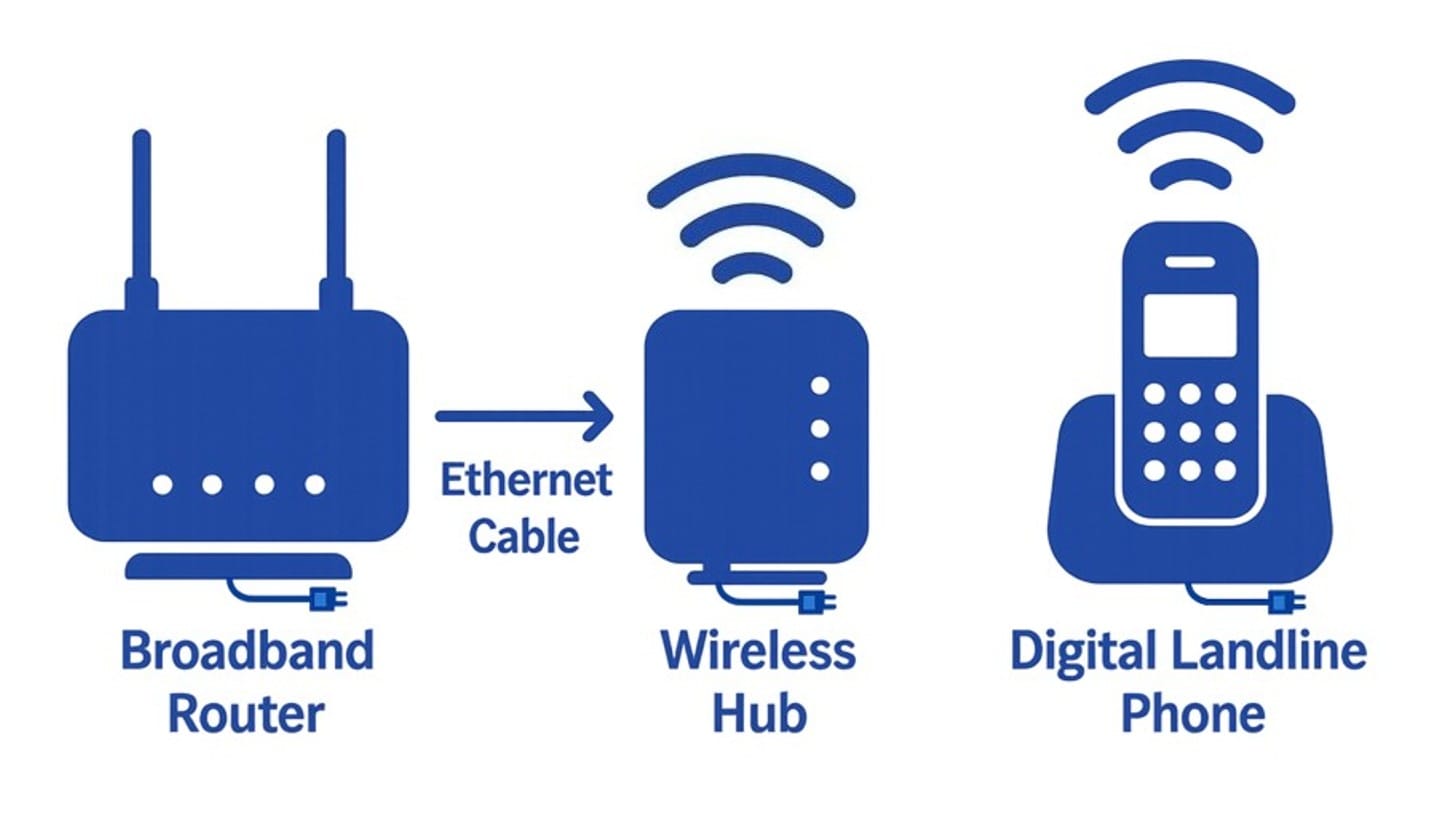
For HD Handset bundles (Which includes a wireless hub).
Using the supplied ethernet network cable, connect the hub to an unused network port on your broadband router, plug in the base station power by connecting the supplied power supply and plugging it into the nearest mains wall socket.
Place the phone base charger where needed, close to a mains power wall socket, lastly connect the supplied power supply to the phone charging base and plug it into the mains wall socket and switch it on, then place your HD handset in the charger to start charging the phone.
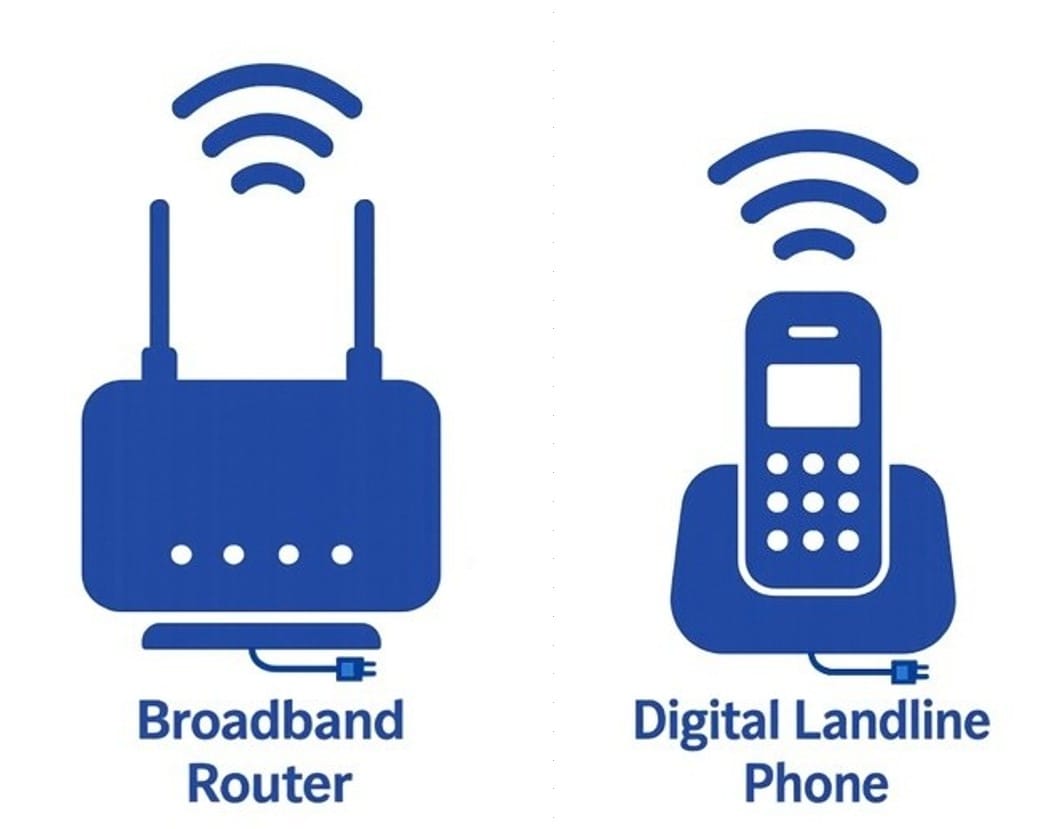
For WIFI HD Handsets (Which does not require a hub).
Place your WIFI HD handset charger anywhere you need it, close to a mains power wall socket, plug in your charging base power supply into the base, then mains wall socket and switch it on, lastly place your HD handset in the charger to start charging the phone.
When ready to connect to your WIFI, obtain the WIFI connection username and password details from the back or underneath of your router, go into the phone settings and add the username and password taken from your broadband router and connect the phone to your WIFI.
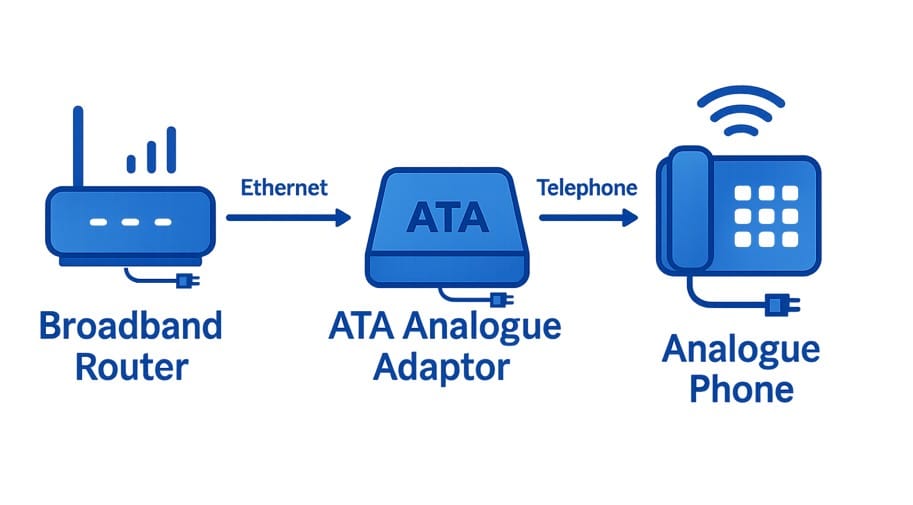
For older analogue telephones.
Connect the supplied analogue phone adapter to an unused port on your broadband router using the supplied ethernet cable, connect your old phone to the phone port on the adapter, lastly connect the supplied power supply to the analogue phone adapter and plug it into the nearest mains wall socket.

Can I have more than just one handset?
Yes, you can have up-to 5 handsets if using a bundle that comes with a hub, or an unlimited amount of handsets if using our WIFI HD handsets
What if I’m still using the old analogue landline, can I still get a digital line and handset ready for when the old landline is switched off?
Yes, our phone lines and HD handsets work with either a new digital broadband line or the older analogue landline based broadband.
What if I change broadband supplier later in the future or upgrade from the old analogue line when it’s switched off, will it affect my digital line and handset?
No, it will just be a case of plugging your handset hub into the newly provided broadband router or just reconnecting to the new the WIFI username/password for WIFI handsets, the phone will automatically reconnect to our services and continue as normal.
What if I want to keep my old analogue phone, can I still sign up to a new digital line?
Yes you can, our services support older analogue phones if you wish to keep yours, our ATA analogue phone adapter takes care of this.
What to do if I have an issue with my new digital line / HD handset.
Simply email or call us and we will endeavour to resolve any issues you may have.
How do I record an answerphone greeting for when I am unavailable?
Simply dial and call 1571 to reach our voicemail services and follow the automated instructions.
How do I listen to my voicemails?
Simply dial and call 1571 to reach our voicemail services and follow the automated instructions.
How do I add call recording feature and how much does it cost?
The new digital phone line services comes with many benefits including call recording, please email or phone us if you would like this feature adding to your new digital line or enquire about rental costs.
How do I save contacts in the handset?
Using your handset, press the down arrow on the circular ring (Has an ‘OK’ button in the centre), and select – Add contact, using the handset buttons create the name and add the number.
For hearing aid use, what do I need to do when making or answering calls?
When requiring to use the hearing aid feature, when making or receiving a call, please set your hearing aid to the ‘T’ function, then just pick up the handset and enjoy clear HD phone calls.
What about emergency 112/999 calls, can I still call emergency services?
Yes, our services support emergency call numbers, however if you lose power to your home and/or your broadband experiences downtime, our services will be unable to communicate and work, to combat power loss we do provide a battery backup ‘UPS’ unit that will keep power on to your broadband and handset for some hours, whilst the power to your house if off but note if the issue is with your broadband provider service, our phone service will also not work.